< Back to Cobra Radar Detectors
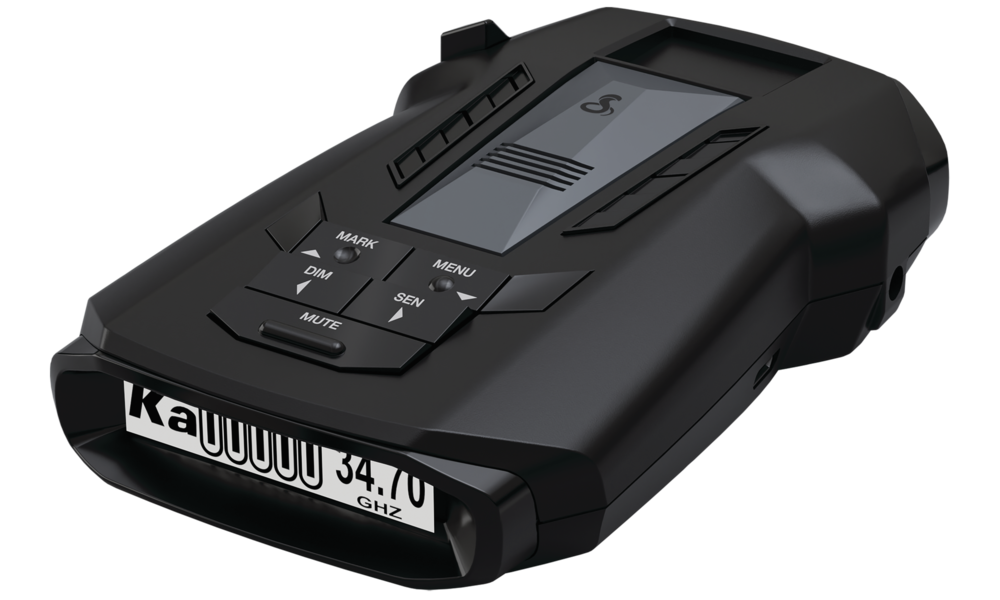 | RAD 700iCongratulations on your purchase of the RAD 700i! Excellent choice. To get acquainted with it, download the Manual, then visit the links below for more helpful information.Questions & Support |
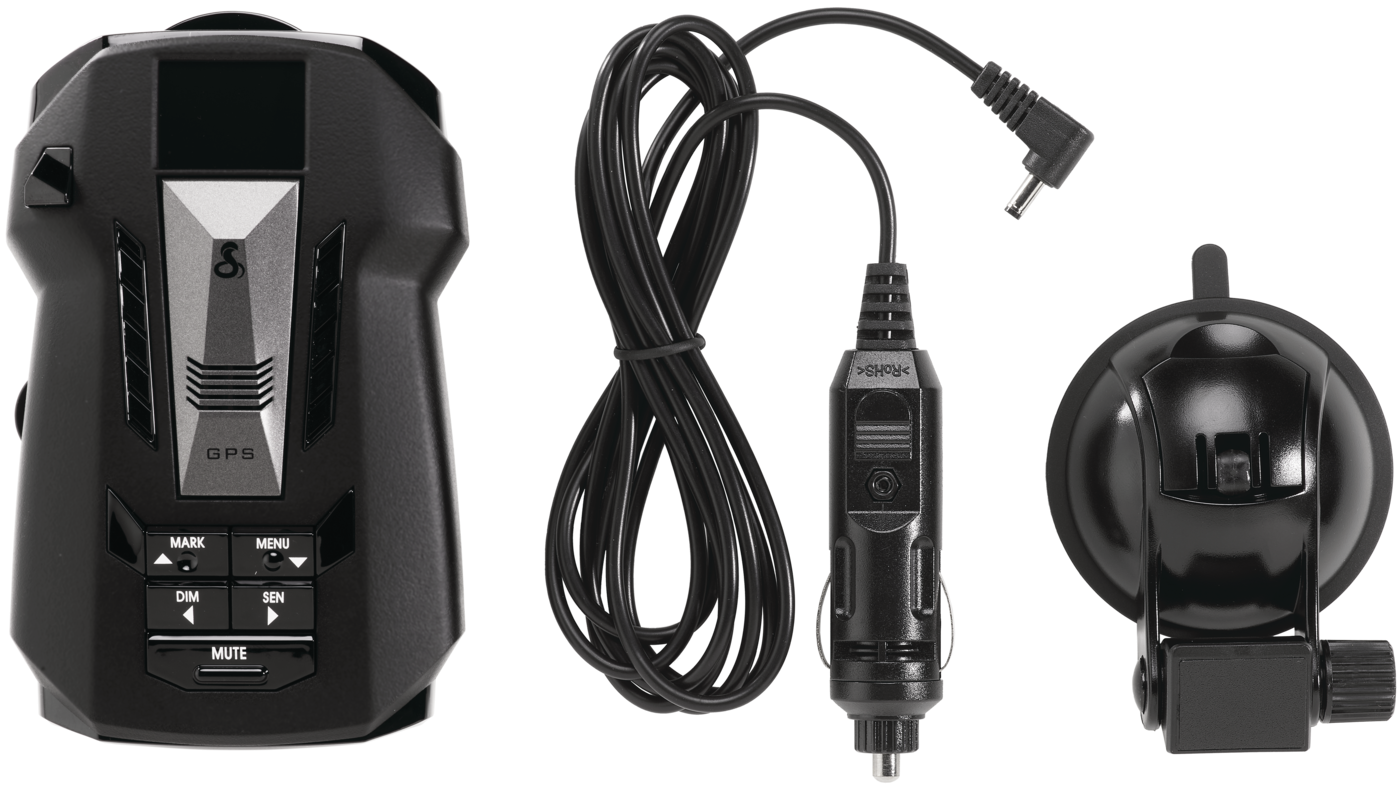 | What's IncludedRadar DetectorPower AccessoriesAdditional Accessories |
Acessories Available for PurchasePower Cables | |
Download Manual (English)
Features of the Cobra RAD 700i
Your RAD 700i comes with many beneficial features that allow it to alert you with information about threats and other features of your driving experience.
Radar Detection
The primary functionality of a radar detector is to detect police band radar. The RAD 700i comes out of the box able to detect the following frequencies of radar and laser/LiDAR.
X-band
- (10.525 GHz ± 25 MHz)
K-band
- (24.100 GHz ± 150 MHz)
Ka-band
- (34.700 GHz ± 1300 MHz)
Laser/LiDAR
- (904nm, 33 MHz Bandwidth)
Sensitivity Modes (SEN Button)
Adjustable sensitivity ensures that your Redline will give you the right information at the touch of a button. There are four sensitivity modes that allow you to adjust filtering levels, giving you the performance that matches your drive.
High
- Maximum sensitivity at all times, best for long drives on the open road.
Medium
- Moderate sensitivity, good for suburban and rural driving.
Low
- Low sensitivity, good for dense urban driving.
Auto
- Uses the detector's built-in GPS to increase sensitivity the faster you drive
- Best for urban, suburban, and some rural driving without having to swap between them.
- High is recommended for long distance driving on highways.
Bright Multicolor OLED Display
The detector comes with a bright multi-color OLED Display giving you a heads-up of what the detector is currently doing.
5 Background Colors
- White (Default)
- Red
- Blue
- Green
- Yellow
4 Brightness Levels
- Bright, Dim, Dimmer
- Dark (for users that want just the audio, no display)
What's Displayed by Default
- Shows if you've enabled Quiet Drive (open speaker icon) or not (crossed-through speaker icon)
- When connected with the Drive Smarter App, the display will provide the local Posted Speed Limit where available.
- Shows the scanning bar, letting you know that the RAD 700i is actively searching for threats.
- Display your current sensitivity level:
- (A) Auto
- (H) High
- (M) Medium
- (L) Low
Audio Features (MUTE Button, Volume Knob, Quiet Drive, Auto Mute)
Audio Alerts are available for Radar, Laser/LiDAR, red light cameras, speed cameras, speed traps, and many other potential threats on the road.
Adjusting the Volume
- Adjust the volume up or down using the numbered knob on the left.
Automatic Muting
- The Auto Mute feature allows the alert to play at full volume, then lowers the volume after 4 seconds.
Manual Muting
- If you'd prefer not to use the Auto Mute feature and would like to manually mute the detector, press the MUTE button on the RAD 700i.
Voice Settings
- Your detector will speak the alerts in English by default. In the settings of your detector. Alerts are available in Spanish by setting the detector's language to Spanish. You can also turn off voice alerts if you prefer not to hear a spoken alert.
Quiet Drive
- Similar to Automatic Muting, audio plays for around 4 seconds then cuts off entirely. This is OFF by default and can be toggled by long pressing the MUTE button until the detector says, "Quiet Drive ON" or "OFF".
GPS-Enabled Features
AutoLearn
- Allows your detector to determine if X-band and K-band alerts are genuine threats after exposure to the same frequency alert in the same area several times. Alerts that the detector marks as locked out will still show a visual alert but will be greyed out on the display and will not alert with sound and will not indicate with arrows.
- You can manually lock out an X or K band signal by pressing MUTE on an alert. Doing so after three visits will lock it out entirely.
Location Marking
- Use the MARK button to mark the location of speed traps, cameras, or other obstacles on the road that you wish to be reminded of any time you approach them. Tap the MARK button twice to mark them. If you wish to unmark them later, when you receive the alert, you can tap the MARK button twice again to unmark the location, or you can consult the manual for how to clear Marked locations.